Microsoft Teams IT Support Scam: How Fake Help Desk Chats Lead to Ransomware (and How to Stop Them)
Your inbox floods with spam, then “IT Support” messages you on Teams offering to fix it. It’s a scam that has led to malware and ransomware across hundreds of incidents. Here’s how it works, how to spot it and the exact Teams settings that shut it down.

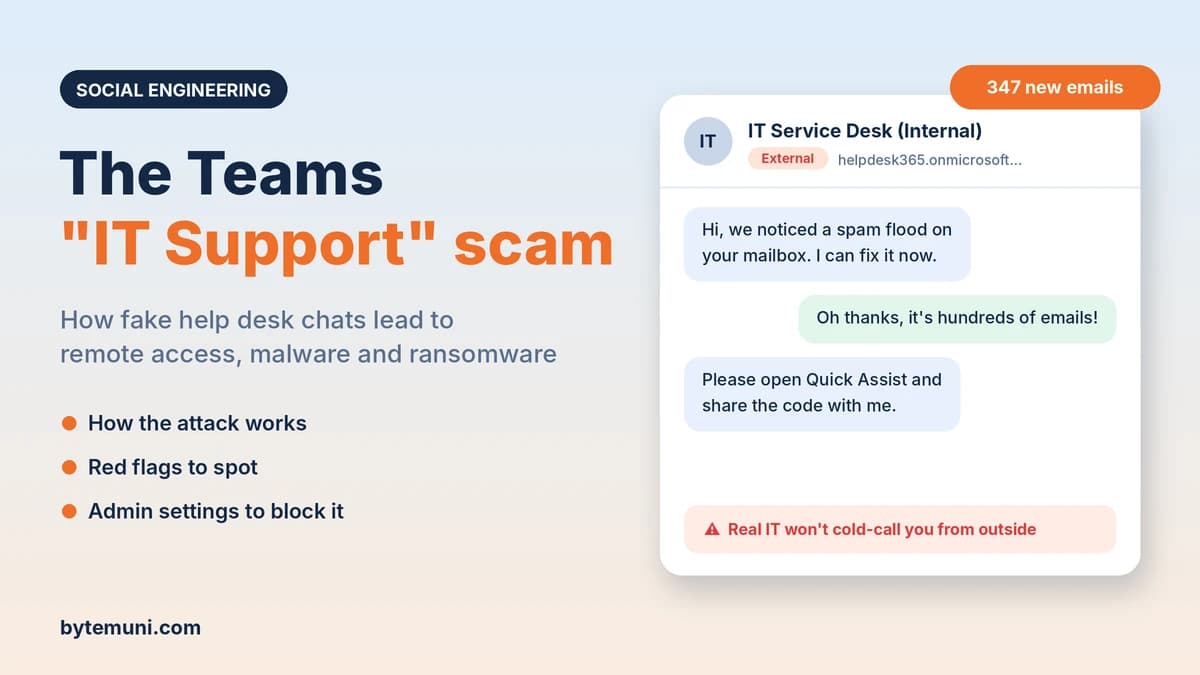
The Microsoft Teams IT support scam starts when your inbox suddenly fills with hundreds of spam emails. Minutes later, someone called "IT Support" or "Help Desk" messages or calls you on Teams, offering to fix it. They're attackers using an outside Microsoft 365 account. If you let them in with Quick Assist or AnyDesk, they can install malware, steal data and, in some cases, deploy ransomware.
This isn't a one-off campaign. Security researchers are now describing it as a "recurring social engineering pattern" seen across hundreds of incidents. In October 2026, Arctic Wolf reported the same fake tenants, the same "IT Support (Internal)" display names and the same remote-access tools appearing again and again. Ontinue found that about 30% of the organisations it monitors saw at least one fake IT support attempt over Teams in the first half of 2026.
This guide explains how the Teams IT support scam works step by step, how to spot it, what to do if you've already clicked, and the exact Teams settings admins can change to shut it down.
What is the Microsoft Teams IT support scam?
It's a social engineering attack. The attacker doesn't hack Teams or exploit a bug. They abuse a normal feature: external access, which lets people from other organisations chat with and call your employees. Many companies leave it open so staff can talk to customers and partners.
The attacker creates their own Microsoft 365 organisation (a "tenant"), gives their account a name like "IT Service Desk" or "Help Desk Supervisor", and contacts your employees directly. Because the message arrives inside Teams, a tool people already trust for work, it feels far more believable than a random email.
As Arctic Wolf put it, external Teams chat "has become an effective initial-access vector because it exploits trust rather than a software vulnerability."
How does the Teams fake IT support attack work?
Across the research from Arctic Wolf, Sophos, Ontinue and Microsoft, the Teams IT support scam follows a consistent playbook.
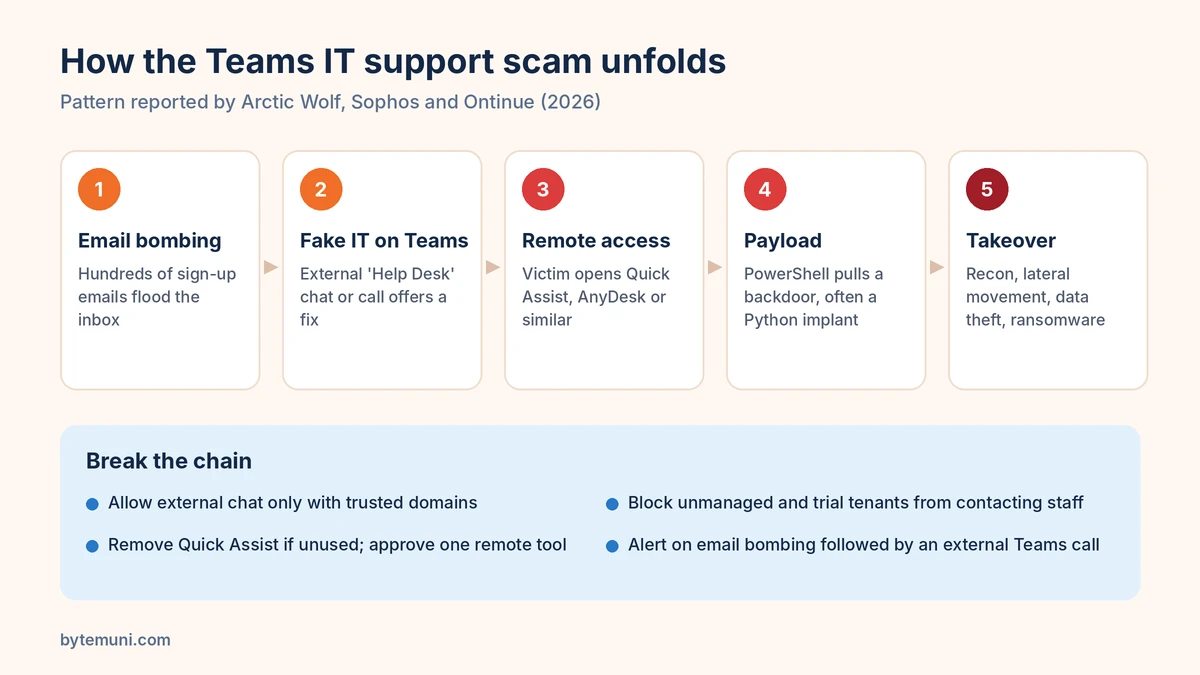
1. Email bombing creates a "problem"
The victim's inbox is suddenly flooded with hundreds of newsletter sign-ups and subscription confirmations, often in a short burst. It's annoying and confusing, and it creates urgency. Ontinue calls an email spike followed quickly by an inbound external Teams call the single strongest warning sign it found.
2. "IT Support" reaches out on Teams
Soon after, a Teams chat or call arrives offering to help with the spam problem. The names are designed to look internal. Arctic Wolf observed display names such as:
Help Desk / IT Support / IT/Help Desk
IT Service Desk – Liam, IT Service Desk – Matt
HelpDesk Supervisor / HelpDesk Manager
Enterprise IT & Security (Internal)
IT Tech Support Internal
In newer cases, attackers even add the target company's name to the display name. The account behind it is often a newly created tenant. According to Arctic Wolf, about 30–40% of cases used the free *.onmicrosoft.com domain that Microsoft gives every new tenant, with names like helpdeskteam365 or itcoreportal. Recently, attackers have shifted toward paid domains: about half used the .top domain, around 40% used .com.
3. The victim is talked into remote access
The fake technician asks the user to open a remote support tool so they can "fix" the issue. Microsoft's built-in Quick Assist is the favourite because it's already on every Windows PC. Researchers also saw AnyDesk, ScreenConnect, TeamViewer, Atera, Zoho Assist, NetSupport, LogMeIn and Level.
Ontinue found that calls ranged from about a minute to over 30 minutes. Successful compromises clustered around the 20-minute mark, long enough to build trust and get the user to click through prompts.
4. Malware is installed, hands-on-keyboard
Once connected, attackers move fast. A notable detail from Arctic Wolf: they usually avoid pasting links into Teams, because Microsoft's Safe Links and zero-hour auto purge (ZAP) would scan them. Instead, they browse to the payload themselves during the remote session. That means message scanning alone won't catch the attack.
In one case Arctic Wolf described, the user was told to run a PowerShell command that downloaded an MSI installer from Microsoft Azure Blob Storage. The installer launched a script that ran a Python backdoor, which then queried Active Directory for all users and computers and sent the results to an outside server. Ontinue separately documented a modular Python implant it calls TWINLOOT, also delivered through PowerShell.
5. Persistence, lateral movement and ransomware
From there, attackers do reconnaissance, install backdoors such as GoGRPC, add a second remote tool for backup access, move to domain controllers, steal data and, in some cases, deploy ransomware.
Sophos tracked a group it calls STAC4749 running this playbook between February and June 2026, mostly against organisations in Canada and the US. At least three intrusions ended with Chaos ransomware. In one, files were encrypted less than 17 hours after the first Teams contact.
Much of this post-access activity uses legitimate tools and valid accounts, the living off the land techniques that make detection so hard.
How do you spot a fake IT support message on Teams?
For employees, these are the red flags of a Teams IT support scam:
"External" label: Teams marks people outside your organisation as external. Your real IT team is internal. A help desk message tagged External is a major warning sign, whatever the name says.
Unexpected contact: you didn't open a ticket, but "IT" is reaching out anyway, especially right after a spam flood.
Strange domain: hover over or open the profile. Addresses ending in
.onmicrosoft.com,.topor an unfamiliar company domain aren't your IT department.Pressure to act now: "We need to fix this before your account is locked."
Requests to install or open remote tools: Quick Assist, AnyDesk, TeamViewer or any program you don't normally use.
Requests to run commands: no real IT technician needs you to paste a PowerShell command they dictate.
Teams' own warnings: Microsoft shows a high-risk warning in the Accept/Block screen when it detects possible impersonation from an external sender. Take it seriously.
The simple rule: if IT contacts you unexpectedly, stop. Contact your IT team yourself through a channel you already know: the official help desk number, ticketing portal or a colleague. Never use the contact details the caller gives you.
What should you do if you already let them in?
Speed matters with any Teams IT support scam. Sophos saw ransomware within 17 hours of first contact.
End the session immediately. Close Quick Assist or the remote tool. If in doubt, disconnect from Wi-Fi or unplug the network cable.
Don't turn off the computer. Investigators may need what's in memory. Disconnecting from the network is enough for now.
Tell your IT or security team right away, using a phone number or channel you know is real. Give them the name, time and anything you were asked to run.
Change your password from a different, trusted device, and let IT revoke your active sessions.
Don't feel embarrassed. These attackers are professionals who do this all day. Reporting quickly is the most helpful thing you can do.
For security teams: assume the attacker had interactive access. Look for newly installed remote tools, scheduled tasks, new registry run keys, PowerShell activity and LDAP queries from that host. Check for activity on other machines in the same timeframe.
How can admins block the Teams IT support scam?
The most effective fixes are configuration changes in Microsoft Teams and on endpoints. Settings below are from Microsoft's documentation.
1. Restrict external access to trusted domains
By default, Teams allows chat with all external domains. If your business only works with specific partners, switch to an allowlist. In the Teams admin center, go to Users > External access and choose "Allow only specific external domains". With PowerShell (after Connect-MicrosoftTeams):
# Allow external chat only with named partner domains
$allowed = New-Object Collections.Generic.List[String]
$allowed.Add("partner-one.com")
$allowed.Add("partner-two.com")
Set-CsTenantFederationConfiguration -AllowedDomainsAsAList $allowed
Test this in a pilot first, and check the current parameter names in Microsoft's Set-CsTenantFederationConfiguration documentation for your module version.
If an allowlist isn't practical, use "Block only specific external domains" to block known-bad domains, and turn on -BlockAllSubdomains so attackers can't simply use a subdomain.
2. Lock down unmanaged accounts and trial tenants
Turn off "External users with Teams accounts not managed by an organization can contact users in my organization". In PowerShell:
Set-CsTenantFederationConfiguration -AllowTeamsConsumerInbound $false. Your users can still start conversations with personal accounts if needed.Keep trial-only tenants blocked. Microsoft's docs list
-ExternalAccessWithTrialTenantswith a default of "Blocked". Leave it that way, since attackers often use fresh or trial tenants.Use "Block specific users from communicating with people in my organization" to block known malicious accounts (up to 200).
3. Limit external access per user
External access needs both the organisation setting and a user policy to allow it. Not everyone needs to chat with outsiders. Restrict external access to the teams that genuinely need it, such as sales, support and partner managers.
4. Control remote-support tools
If your organisation doesn't use Quick Assist, remove or block it. As an example, on managed devices:
Get-AppxPackage -AllUsers -Name MicrosoftCorporationII.QuickAssist | Remove-AppxPackage -AllUsers. Use your device management tool (Intune, Group Policy or AppLocker) to keep it from coming back.Pick one approved remote-support tool that verifies the technician's identity (such as Intune Remote Help), and block the rest with application control.
Alert on the installation or first run of AnyDesk, ScreenConnect, TeamViewer, Atera, NetSupport, Level and similar tools.
5. Detect the patterns that matter
Email bombing followed by an external Teams contact within a short window. Ontinue found this the highest-fidelity signal.
External Teams accounts whose display name or email includes words like help desk, IT, support, service desk or admin. Ontinue found impersonation clues more often in the email address than the display name, so check both.
PowerShell downloading files from cloud storage, MSI installs started by users, and new run keys after a Teams call.
Unusual LDAP queries from a workstation, a sign of Active Directory reconnaissance.
Because attackers deliberately avoid sending links in Teams, Arctic Wolf stresses that endpoint and identity telemetry are essential, not just message scanning.
6. Make email bombing less effective
Work with your email security provider to detect and quarantine sudden floods of sign-up and newsletter emails. Some secure email gateways now include specific email-bombing protections. Fewer spam floods means fewer "problems" for fake IT to solve.
7. Train people on this specific scam
Generic phishing training talks about suspicious links. The Teams IT support scam has no link. Teach staff the specific story: spam flood, then "IT" on Teams, then a request for remote access. Make sure everyone knows the real way to contact IT, and that IT will never cold-call asking for remote access or for commands to be run.
Why does the Teams IT support scam keep working?
Trust in the platform: people treat Teams as an internal tool, so they lower their guard.
Real tools: Quick Assist and other remote tools are legitimate and signed, so antivirus doesn't block them.
Cheap identities: anyone can create a Microsoft 365 tenant with a convincing name in minutes.
Engineered urgency: email bombing creates a real, visible problem that the "helper" offers to fix.
Open defaults: external access is often left open to all domains because nobody revisited the setting.
The same pattern of abusing trusted tools and identities shows up across this year's attacks, from stolen GitHub tokens used to dump CI secrets to AI agents acting as insiders. For a wider view of what else attackers did this month, see our cybersecurity weekly recap.
The bottom line
The Microsoft Teams IT support scam works because it feels like normal work: a spam problem, a helpful message from "IT", a quick remote session. Defending against it is mostly about settings and habits, not new products. Restrict external access, control remote-support tools, watch for email bombing followed by Teams contact, and make sure every employee knows one simple rule: real IT doesn't cold-call you on Teams from an external account and ask to take over your computer.
Sources: The Hacker News (Arctic Wolf research) · SecureWorld on Ontinue's 1H 2026 Threat Intelligence Report · BleepingComputer on Sophos STAC4749 and Chaos ransomware · Microsoft Learn: Manage external access in Teams · BleepingComputer on Teams brand impersonation protection · Sophos MDR on email bombing and Teams vishing
Frequently asked questions
What is the Microsoft Teams IT support scam?
Attackers create their own Microsoft 365 tenants, pose as your IT help desk on Teams, and trick employees into granting remote access that leads to malware or ransomware.
Why does the scam start with lots of spam emails?
Email bombing creates a real, urgent problem. The fake IT person then contacts you offering to fix it, which makes the request feel legitimate.
How can I tell if a Teams message from IT is fake?
Look for the “External” label, an unexpected contact, an unfamiliar domain and requests to install remote tools or run commands. Contact IT through a channel you already know.
What should I do if I already gave them remote access?
End the session, disconnect from the network without shutting down, report to IT immediately, and change your password from another trusted device.
How can admins block this attack in Teams?
Restrict external access to trusted domains, stop unmanaged accounts from contacting staff, keep trial tenants blocked, and block specific malicious users.
Should we remove Quick Assist?
If your organisation doesn’t use it, yes. Standardise on one approved remote-support tool that verifies technicians, and alert on installs of others.
How this article was made: researched and edited by Deepak Kumar, drafted with help from AI tools.