Windows 11 October 2026 Update: Hidden Features and How to Turn Them On
Remap the Copilot key, preview PDFs again and scroll with one finger. Here’s everything in the Windows 11 October 2026 update, and why 24H2 users must upgrade now.

The Windows 11 October 2026 update (KB5127648) has been rolling out since Patch Tuesday on October 13, and most people installed it without a second look. That's a shame, because it brings several small changes that are genuinely useful: you can finally remap the Copilot key, PDF previews work again in File Explorer, there's a new one-finger touchpad scroll, and there's an option to make every app open maximized. Microsoft also switches some features on gradually, so many of them won't appear unless you know where to look.
There's also a deadline hiding in this release. For anyone on Windows 11 24H2 Home or Pro, this is the last security update you will ever get. This guide covers that first, then walks through every useful feature in the Windows 11 October 2026 update, with the exact settings path for each, plus the known issues to watch for.
The short version
The Windows 11 October 2026 update is KB5127648, released on October 13, 2026.
24H2 Home and Pro are now out of support. Upgrade to 26H2 (the Windows 11 2026 Update) to keep getting security fixes.
New: Copilot key remapping, PDF previews in File Explorer, one-finger edge scrolling, "Open apps maximized", a Tips widget, Emoji 17.0 and more.
Features roll out gradually. Turning on "Get the latest updates as soon as they're available" gets them to you sooner.
Office and VPN users should check the NTLMv1 change, which can affect some Wi-Fi, Ethernet and VPN logins.
Step 1: Check which Windows 11 version you're on
Everything else depends on this. Press Win + R, type winver and press Enter. You can also go to Settings > System > About.
After the Windows 11 October 2026 update, your build number should match one of these:
VersionBuild after this updateSupport status26H2 (Windows 11 2026 Update)26300.9711Supported until October 2029 (Home and Pro)25H226200.9711Supported24H2 Home and Pro26100.9711No more updates after October 13, 202624H2 Enterprise and Education26100.9711Supported until October 12, 2027
If your build is lower than the one in the table, open Settings > Windows Update and click Check for updates.
Step 2: If you're on 24H2, upgrade to 26H2 now
Microsoft confirmed that Windows 11 24H2 Home and Pro "reached end of updates" with this release. Your PC will keep working, but it won't get any more security patches. Given how busy this month has been for serious vulnerabilities (we've covered PHP2Shell and Node2Shell this week alone), running an unpatched operating system isn't worth the risk.
The good news is that the move to 26H2 is quick. 26H2 arrives as an enablement package, a small update that switches on features already sitting on your PC, so it usually needs only a single restart.
Install the October update (KB5127648) first and restart.
Go to Settings > Windows Update.
Turn on Get the latest updates as soon as they're available.
Click Check for updates. When the "Windows 11, version 26H2" offer appears, choose Download & install.
Restart when asked, then run
winverto confirm a build starting with 26300.
If the 26H2 offer doesn't appear, your PC may be under a "safeguard hold." That means Microsoft has found a compatibility problem with your hardware or drivers and is holding the upgrade back until it's fixed. You can't remove the hold yourself, but you can check the Windows release health page for known issues and keep checking for updates.
Best features in the Windows 11 October 2026 update (and how to turn them on)
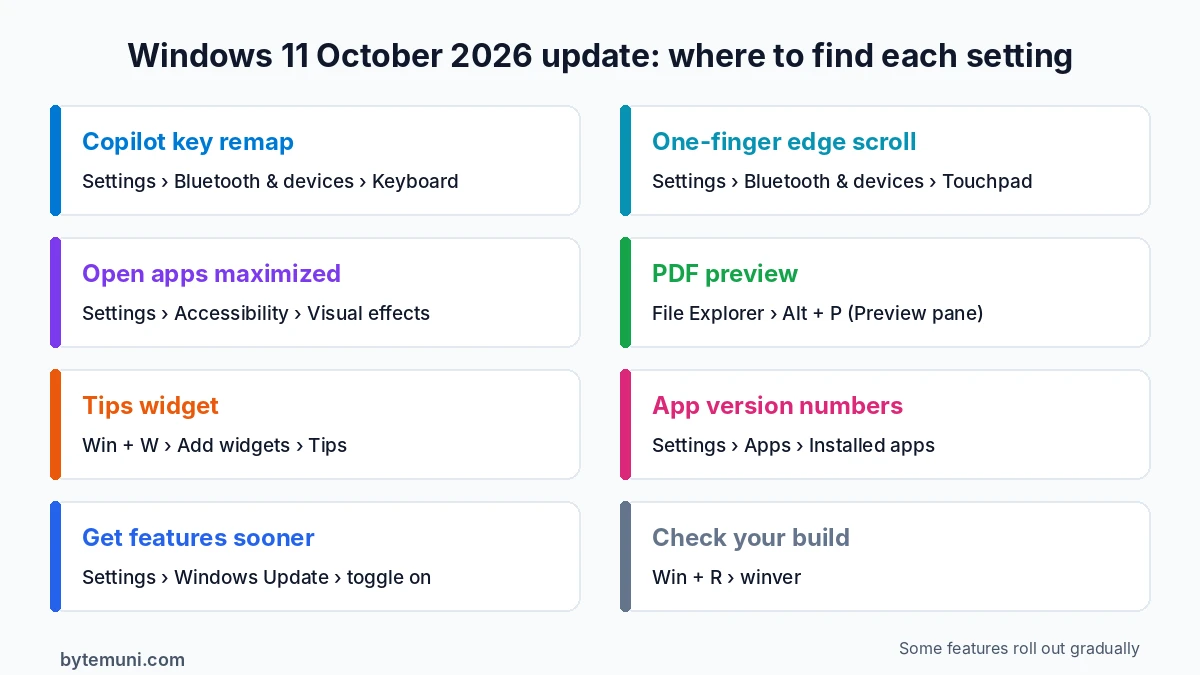
Where to find each new setting in the Windows 11 October 2026 update.
1. Remap the Copilot key
This is the change many laptop owners have been waiting for. Newer keyboards replaced the right Ctrl key with a Copilot key, which is annoying if you use Ctrl shortcuts all day or simply don't use Copilot. You can now choose what it does.
Where: Settings > Bluetooth & devices > Keyboard > Customize Copilot key on keyboard
Options include Right Ctrl, the Context menu key, Search, or launching an app of your choice. Developers who live in keyboard shortcuts will probably want Right Ctrl back. If you do use AI tools for coding, see our guide to GitHub Copilot in VS Code, which is a different product from the Windows Copilot app.
2. Preview PDFs in File Explorer again
An earlier security change stopped File Explorer from previewing files downloaded from the internet. The Windows 11 October 2026 update fixes the most annoying part of that:
Downloaded PDFs now preview automatically in the Preview pane.
Downloaded HTML files show a warning first, with a Preview anyway button.
Where: In File Explorer, press Alt + P, or go to View > Show > Preview pane.
File Explorer also gets two smaller improvements. The Home page now remembers which sections you expanded or collapsed, and the Details pane shows more reliable thumbnails for cloud files such as OneDrive.
3. Scroll with one finger on your touchpad
If your laptop has a precision touchpad (most modern Windows laptops do), you can now scroll pages by sliding one finger along the left or right edge of the touchpad, much like the scroll strip on old laptops. There's also an automatic scroll: keep swiping upward without lifting your finger and the page keeps moving.
Where: Settings > Bluetooth & devices > Touchpad
If you don't see the options, your touchpad isn't a precision touchpad, or the feature hasn't reached your PC yet.
4. Make every app open maximized
A new accessibility setting tells apps to open maximized by default. Note that this is maximized (filling the screen with the taskbar still visible), not full screen. It's a small but handy change on smaller laptop screens or for anyone with low vision.
Where: Settings > Accessibility > Visual effects > Open apps maximized
Some older desktop apps ignore this setting and open at their usual size.
5. Add the Tips widget
A new widget shows short tips about Windows features you may not know about. It's a good way to discover hidden shortcuts without hunting for them.
Where: Open the Widgets board (Win + W), click Add widgets, and pick Tips. To show it on your lock screen, go to Settings > Personalization > Lock screen.
6. See app version numbers at a glance
Settings now shows the version number of packaged apps (such as Microsoft Store apps) directly in the installed apps list. That's useful when you're checking whether an app has updated to fix a bug or a security problem.
Where: Settings > Apps > Installed apps
7. The smaller extras
Emoji 17.0: new emoji in the picker. Press Win + . to open it.
Magnifier refresh: updated toolbar icons and spacing. Open it with Win + +.
Better wallpapers: sharper previews, smoother slideshows and DIB image support under Settings > Personalization > Background.
Camera roll backup: some users will see an option to back up phone photos to the PC by scanning a QR code, under Settings > Accounts.
Recovery over Wi-Fi: the Windows Recovery Environment can now reuse your saved Wi-Fi networks, which helps Windows fix a PC that won't start properly. It's on by default.
Tip: get new features faster
Microsoft rolls out many of these features gradually, so two identical PCs can show different options for days or weeks. To get them sooner:
Open Settings > Windows Update.
Turn on Get the latest updates as soon as they're available.
Restart your PC after the next update installs.
If a feature still doesn't appear, wait a few days. It's usually the staged rollout rather than a problem with your PC.
Bugs the Windows 11 October 2026 update fixes
According to Microsoft's release notes, this update fixes several frustrating problems:
Mouse input stuttering in some games
Windows Hello fingerprint sign-in failing after a cold boot on some devices
Printing failures with RAW and "Generic / Text Only" drivers that started after the August 2026 update
AC-3 (Dolby Digital) audio playback failing in some apps
Always On VPN connections stuck on "Connecting"
File Explorer crashing to a black screen in some multi-user setups such as Azure Virtual Desktop
If any of these were bothering you, installing the update should help.
Known issues to watch for
No update is perfect. Microsoft has confirmed these problems:
Smart App Control may be greyed out. If it was turned off, you may not be able to turn it back on. Microsoft is working on a fix; IT admins can use the registry or Group Policy workaround in Microsoft's notes.
Remote Desktop error 0xC000000D. Non-admin users may get this when connecting to a PC with Administrator protection turned on. A fix is coming.
Some USB audio devices (USB Audio Class 1.0) may still show Code 10 errors or produce no sound. An earlier update fixed part of this; the rest is still being worked on.
For office and VPN users: the NTLMv1 change
This is the one most likely to cause surprise support calls. On PCs where Credential Guard is off and a specific setting (BlockNtlmv1SSO) hasn't been configured, Windows now blocks an old login method called NTLMv1 instead of just logging it. That can break some Wi-Fi, Ethernet and VPN connections that use an older protocol called MS-CHAPv2. If your office network or VPN suddenly stops connecting after the update, tell your IT team and point them to Microsoft's article KB5066470.
One more check: Secure Boot certificates
Microsoft has been replacing the old 2011 Secure Boot certificates that your PC uses to check that it starts only trusted software. The Windows Production PCA 2011 certificate expires on October 19, 2026, and Windows Update is rolling out the replacements. PCs that haven't received the new certificate yet will still boot and update normally, so there's no need to panic. Keeping Windows Update on is how you get the new certificates.
To confirm Secure Boot is on, open Windows Security > Device security and look for the Secure Boot section.
Quick checklist
Run
winverand confirm a build ending in .9711 or laterOn 24H2 Home or Pro? Upgrade to 26H2 this week
Turn on Get the latest updates as soon as they're available
Remap the Copilot key if you miss Right Ctrl
Try one-finger edge scrolling on your touchpad
Turn on "Open apps maximized" if you're on a small screen
If your work VPN or Wi-Fi breaks, mention NTLMv1 and KB5066470 to IT
Small habits like this, such as checking what an update actually changed instead of clicking "restart later," pay off over time. If you're a developer looking for more of them, read our tips for mid-level developers.
Sources: KB5127648 release notes (ElevenForum) · Windows Central · BleepingComputer: 24H2 end of support · Admin365 · Microsoft release health
Frequently asked questions
What is KB5127648?
It’s the Windows 11 October 2026 cumulative update, released on October 13, 2026, for versions 24H2, 25H2 and 26H2.
Is Windows 11 24H2 still supported?
Not for Home and Pro. The October 2026 update was their last one. Enterprise and Education editions are supported until October 12, 2027.
How do I remap the Copilot key?
Go to Settings > Bluetooth & devices > Keyboard > Customize Copilot key on keyboard, then choose Right Ctrl, Context menu, Search or an app.
Why don’t I see the new features?
Microsoft rolls them out gradually. Turn on “Get the latest updates as soon as they’re available” in Windows Update and restart.
How do I check my Windows 11 build?
Press Win + R, type winver and press Enter. After this update, the build should end in .9711.
My work VPN stopped connecting after the update. Why?
The update now blocks the old NTLMv1 login method on some PCs, which can break VPNs that use MS-CHAPv2. Ask your IT team to check Microsoft’s KB5066470.